
How to Purchase Lightning Lane Passes for Disney World in the My Disney Experience App
This guide provides a screenshot tutorial on how to purchase Lightning Lane passes in the My Disney Experience app. We’ll walk you through the entire process step-by-step with screenshot examples.
To purchase Lightning Lane Multi Pass, Single Pass, or Premier Pass, you must have the My Disney Experience app on your mobile device. You’ll also need to make sure that resort reservations and tickets for each guest at your party are linked to the app. (It is of utmost importance that these things are completed before your Lightning Lane reservation date. If not, you might not be able to complete your purchase.)
About purchasing Lightning Lane Premier Pass: Since Lightning Lane Multi Pass and Single Pass debuted, Premier Pass has been added. You will follow the same instructions below to purchase the Premier Pass. However, it’s important to note that Premier Pass is listed immediately under Multi Pass on the home screen of the app. So you’ll select Premier Pass instead of Multi Pass if you wish to purchase this particular product.
Step One: Open the My Disney Experience App
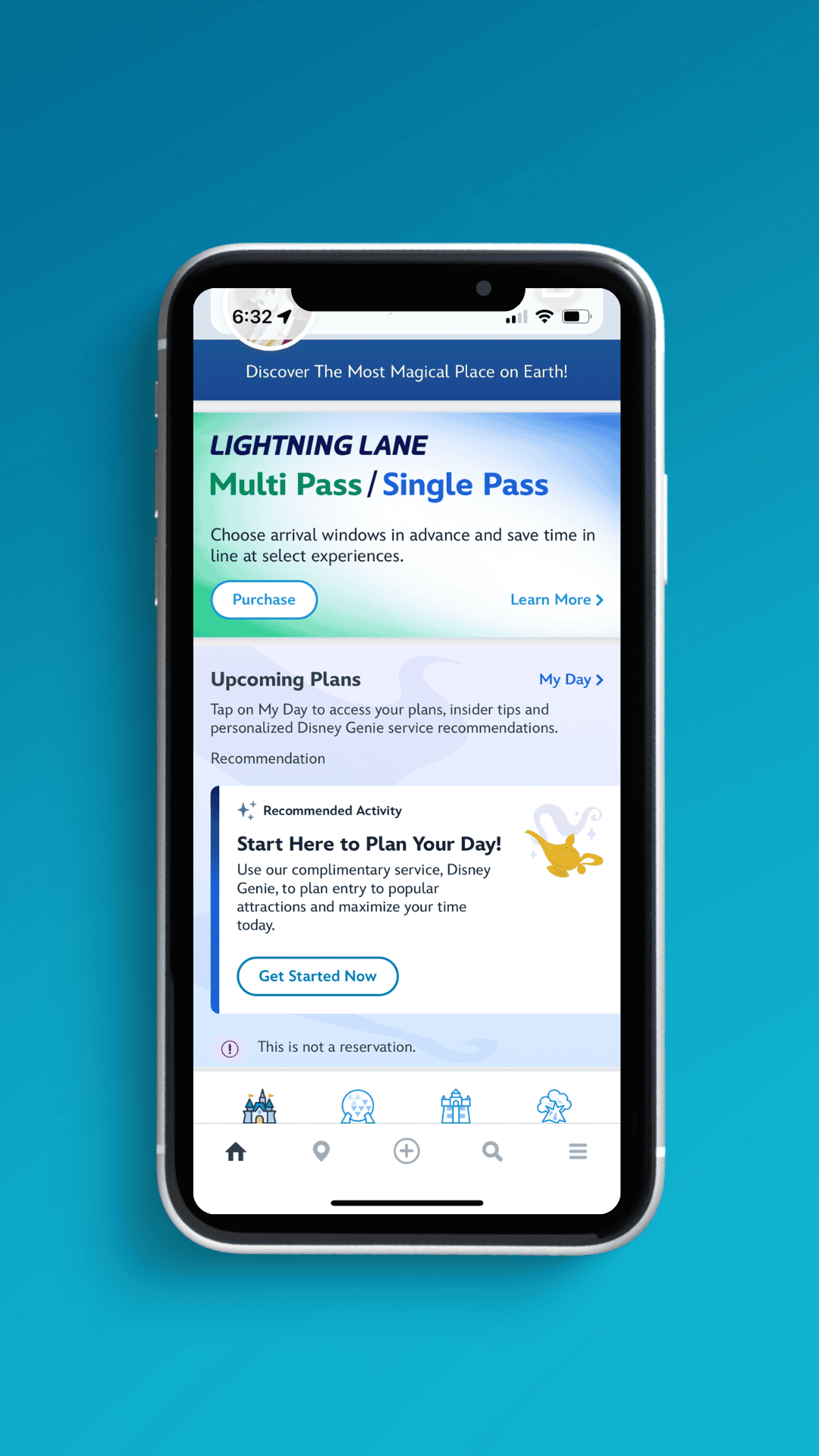
When you open the My Disney Experience app, you’re greeted by the home screen. About a third of the way down, you’ll see the Lightning Lane Multi Pass and Single Pass section in blue and green. The screen reads, “Choose arrival windows in advance and save time in line at select experiences.”
Step Two: Select Purchase
You’ll want to select the purchase button. (No worries. You won’t purchase anything until you’ve selected your passes and times.)
Step Three: Select Your Date
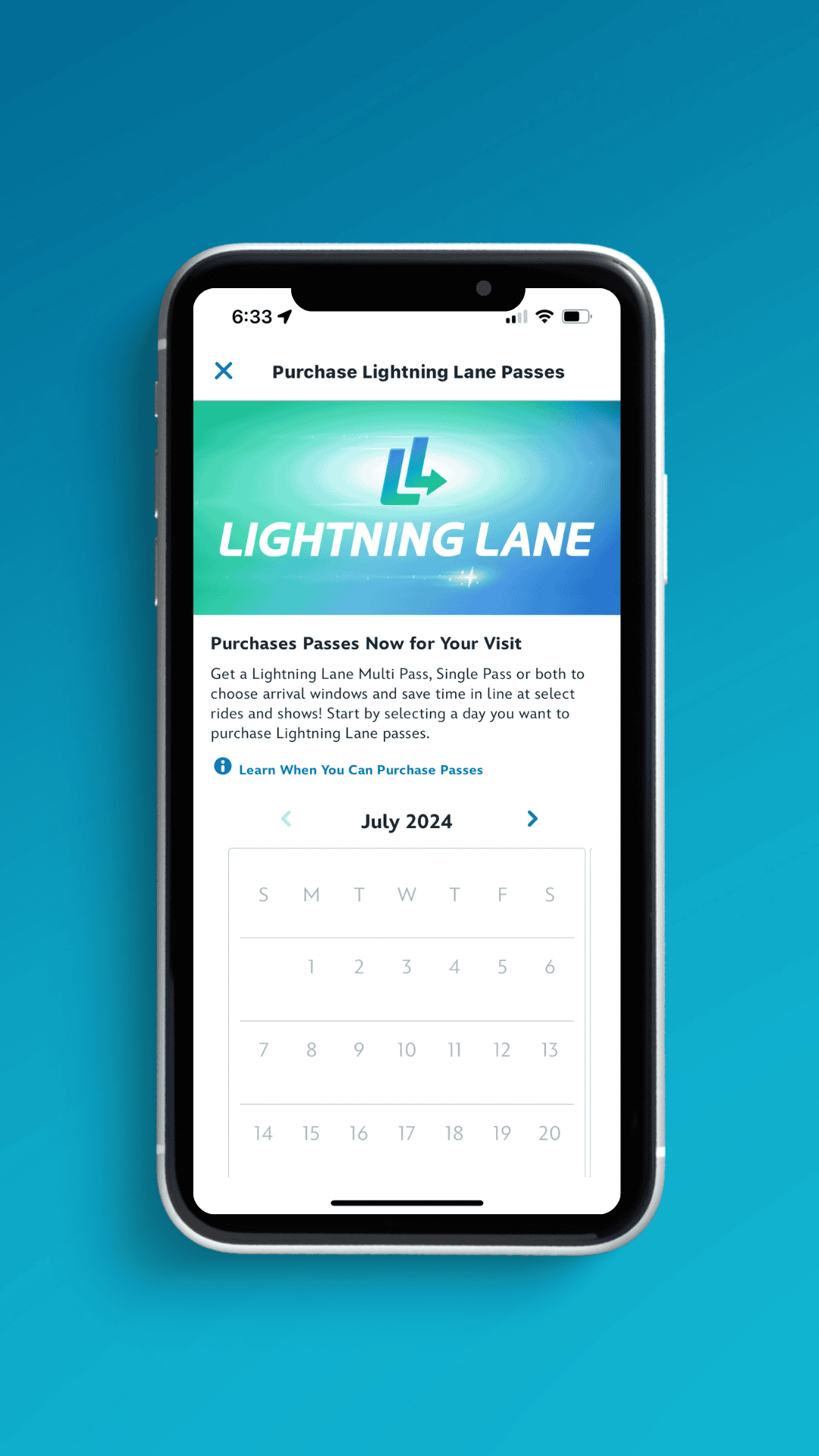
After selecting the purchase button, a new screen appears with a calendar. Your first available booking date will appear. If you are a resort guest, you’ll be able to book up to 7 days in advance for the entirety of your vacation. In most instances, I would recommend starting with your first available date. However, if you’re visiting during the holidays or a busier-than-usual time of year, you might want to start a little further out and work your way back.
For example, if you’re visiting the week between December 21st and December 28th, you might prefer to book your Lightning Lanes for Christmas Eve or Christmas Day before your other dates. But it’s something to consider, depending on your travel dates.
All other guests (visiting from off-site) can complete this same process three days before their vacation. Here are the stipulations:
- Guests with date-based theme park tickets (which require the Guest to choose a start date at the time of purchase) can purchase 3 days before the first day of their ticket for the total number of valid admission days on their ticket.
- Guests with other ticket types can purchase 3 days before their park visit.
- Annual Passholders can purchase 3 days before their park visit.
Step Four: Select Park
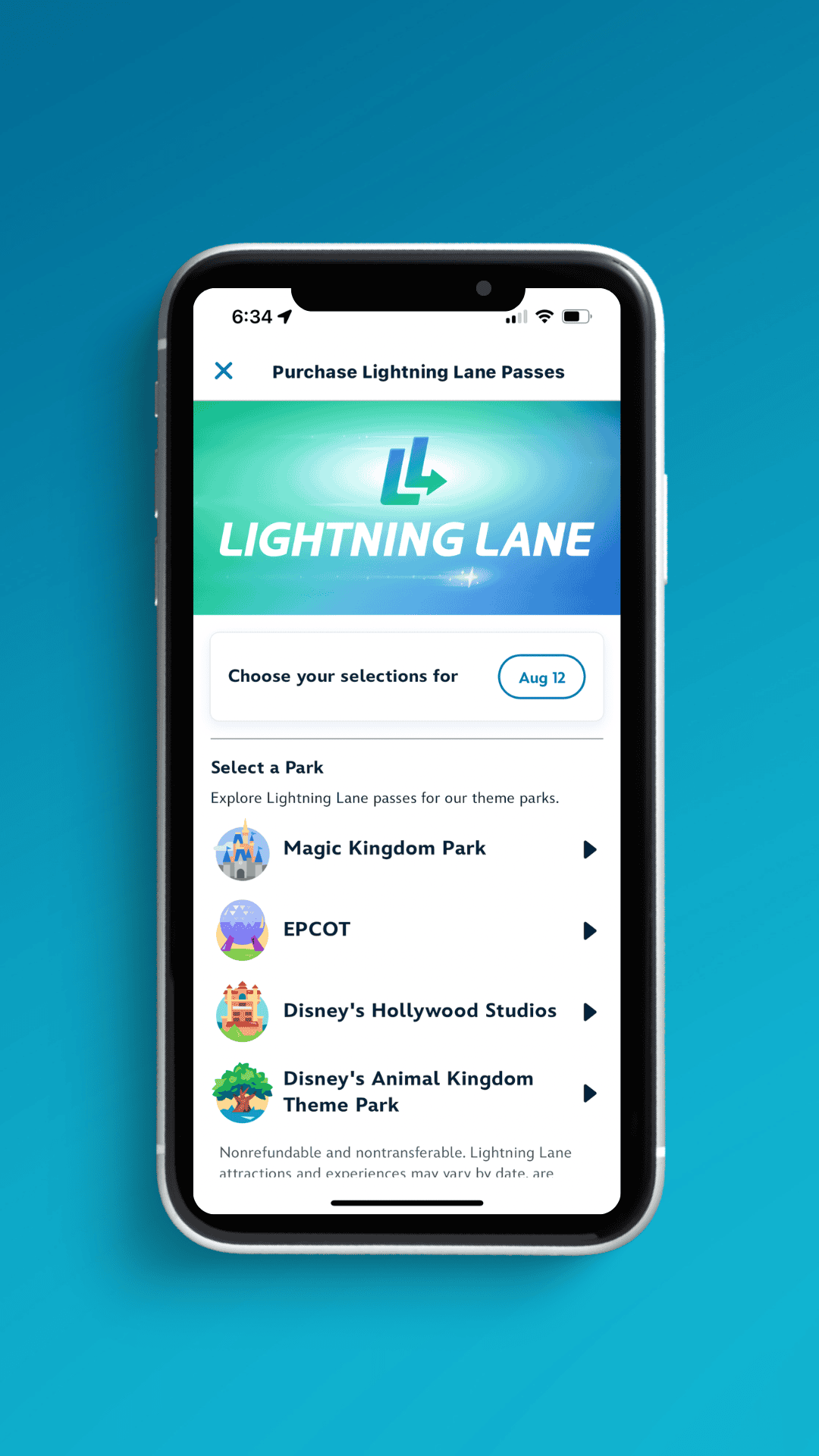
After selecting your desired date in the My Disney Experience app, a list of the four parks appears. You should select the park you’ve planned for this specific date.
Step Five: Select Lightning Lane Multi Pass and/or Lightning Lane Single Pass (if applicable)
Once you select the park, you can purchase a Lightning Lane Multi Pass for that day and/or a Lightning Lane Single Pass (based on availability). If you’re purchasing both, make sure to tap on each one. A checkbox will appear indicating your selections. Here are a couple of screenshots of the parks. Note that the prices are date-based and will fluctuate.
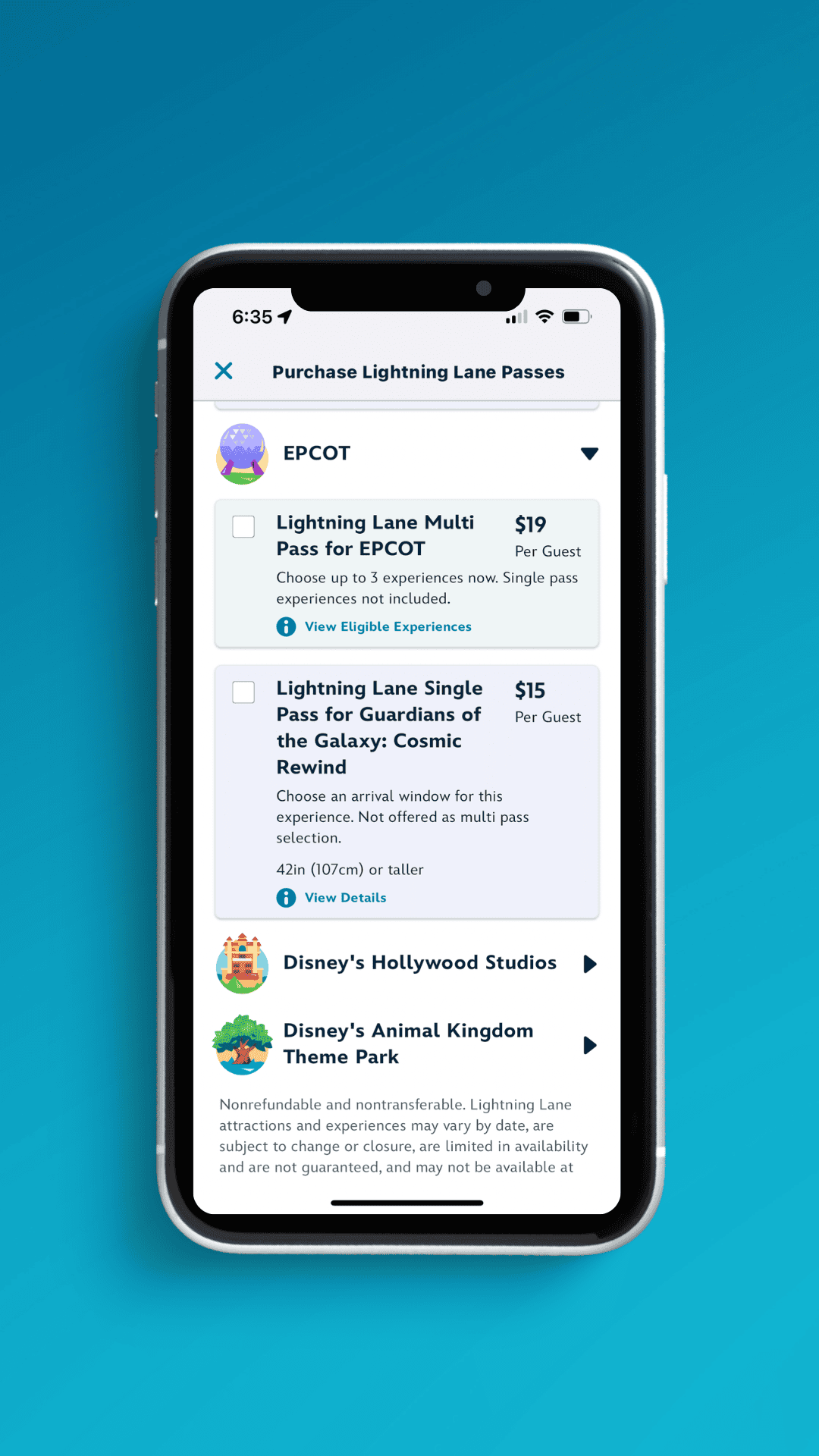
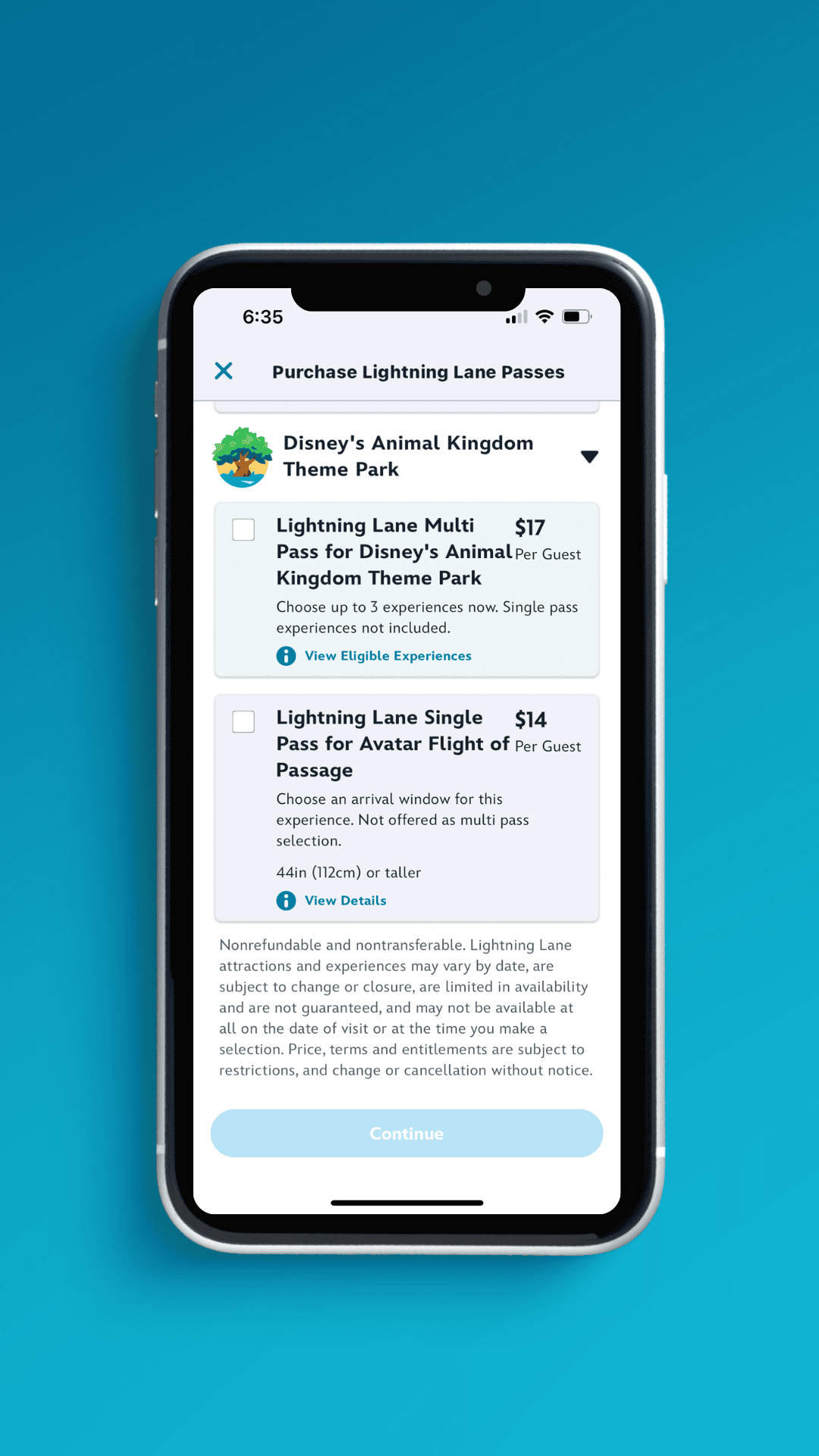
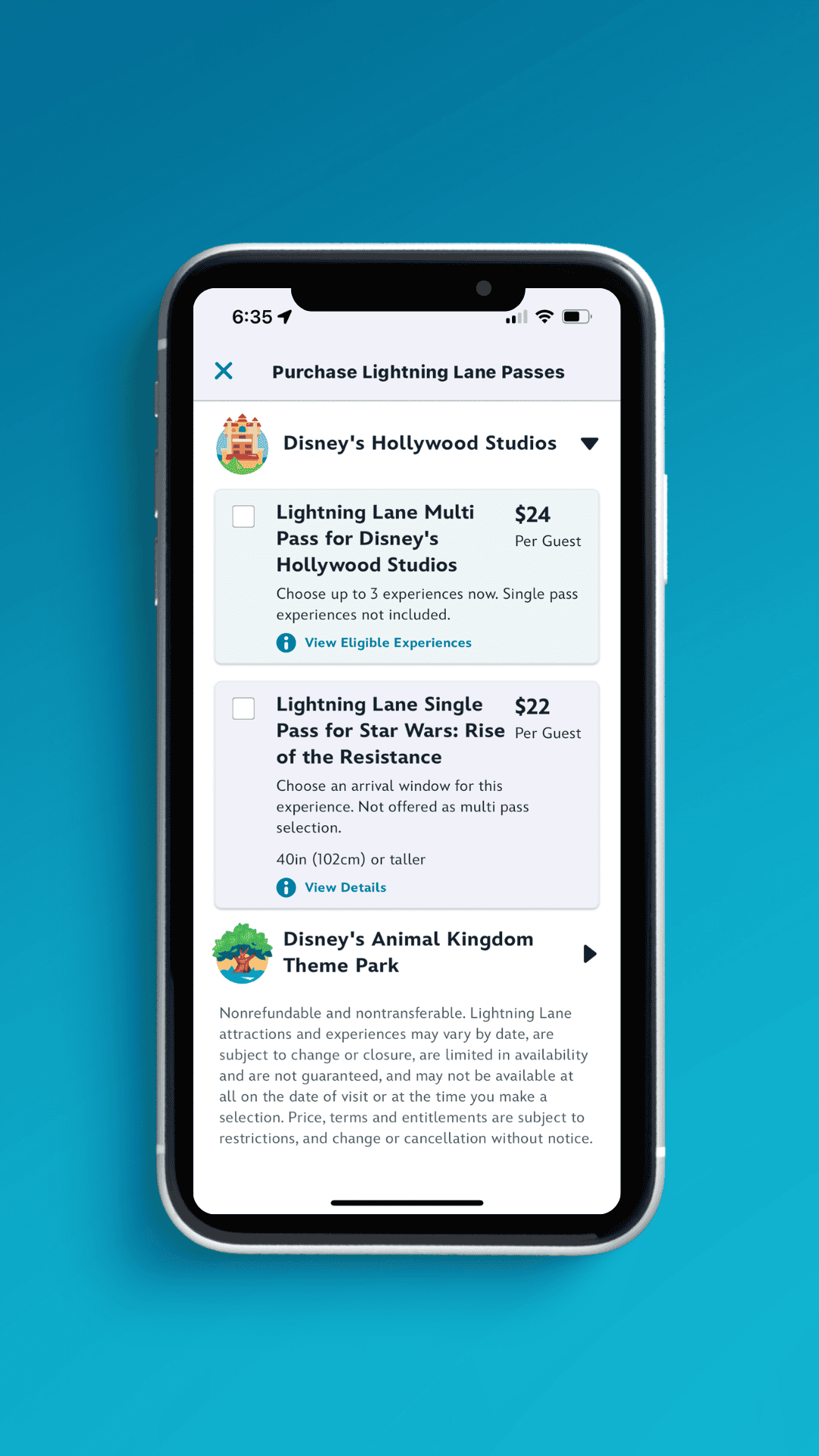
Step Six: Confirm and Select Family and Friends
Next, you’ll want to select the “Continue” button at the bottom of the screen. You can visually confirm your selections on the next screen. If everything looks good, scroll down and select your family and friends. (Again, make sure that all reservations and tickets are linked to your My Disney Experience app well before this date.)
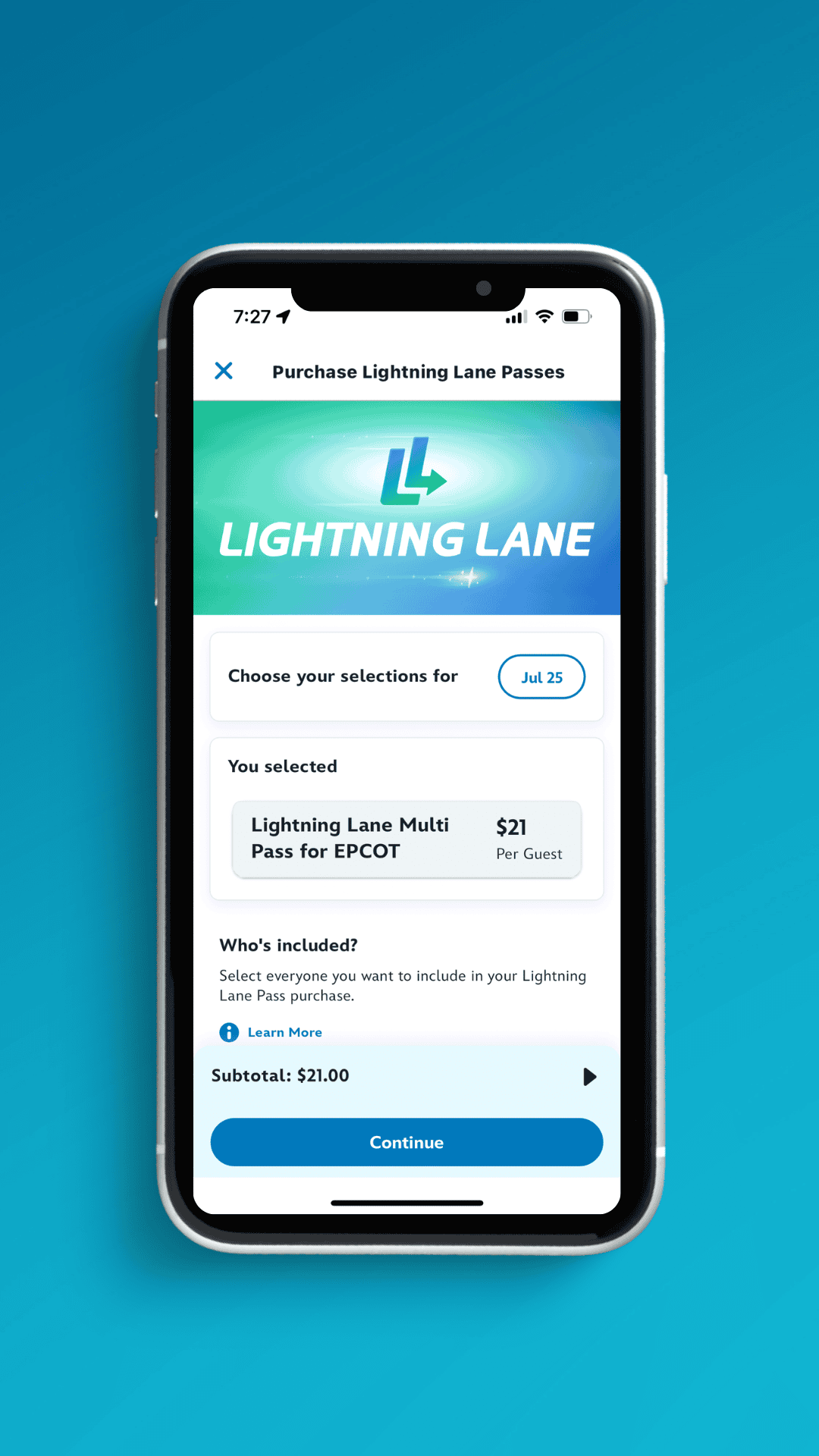
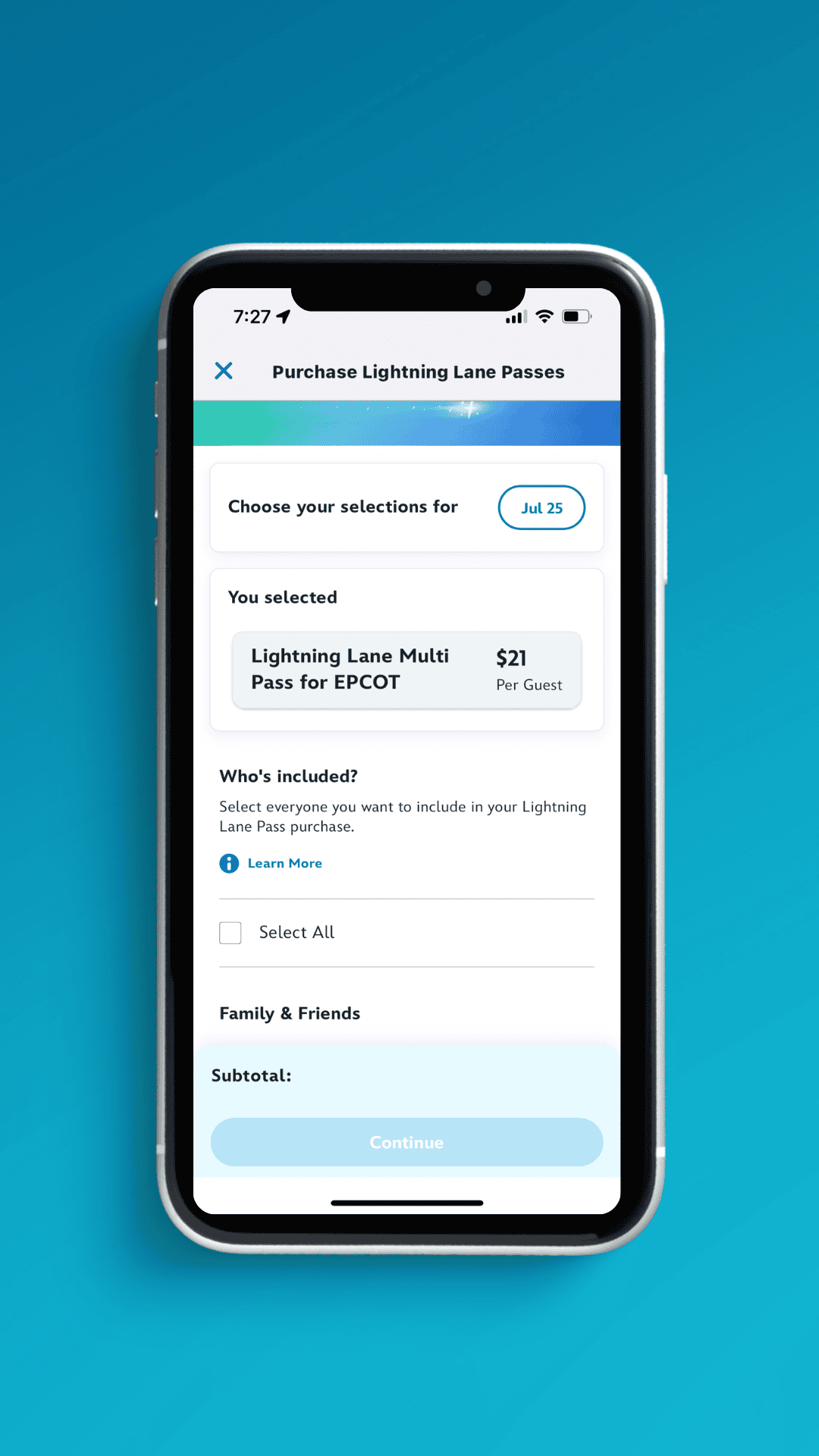
Step 7: Select Attractions
Now, it’s time to begin selecting attractions. For Magic Kingdom, Epcot, and Hollywood Studios, you can select one Lightning Lane from the first group. Then, you can select two Lightning Lanes from the third group. Animal Kingdom does not have tiers, so you’ll select all three attractions from the same group for that park.
*You can only select three (3) Lightning Lane Multi Pass rides per day before your vacation. Once you enter a park and use your first Lightning Lane, you can replace it with another ride. You can continue to do this every time you redeem a Lightning Lane as long as new options are available. Remember that you can only use one Lightning Lane per attraction each day.
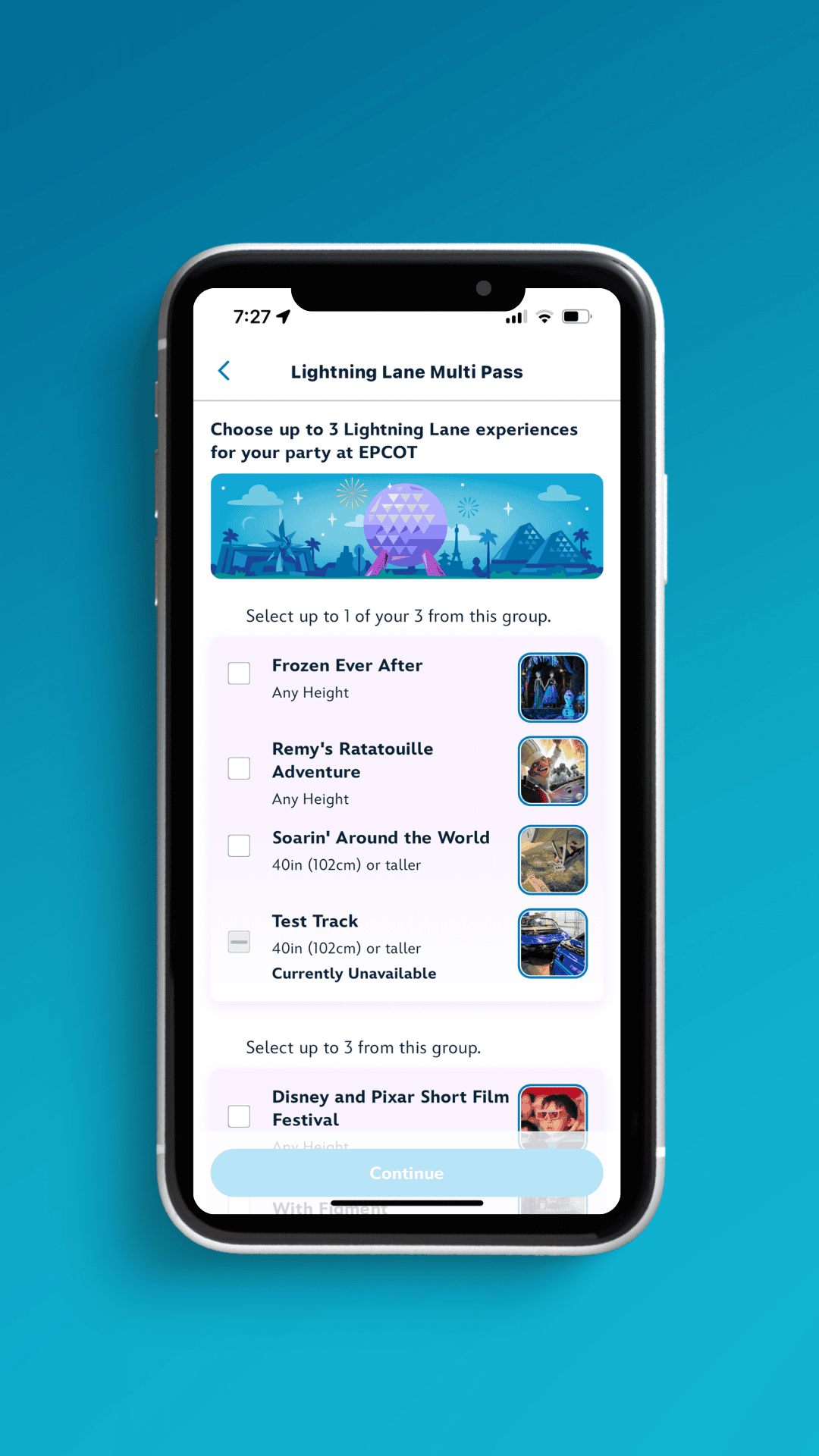
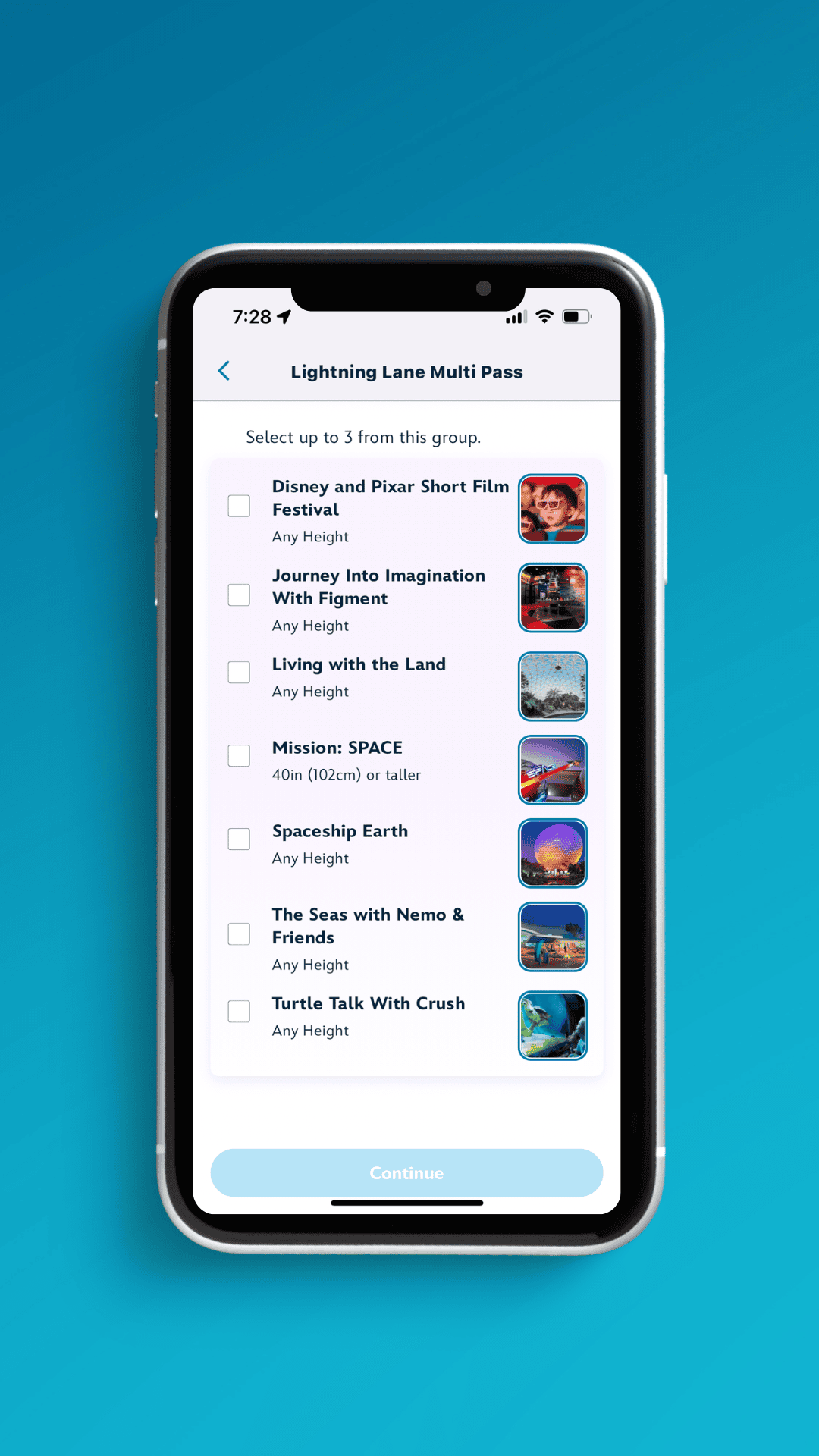
Step Eight: Select Desired Times
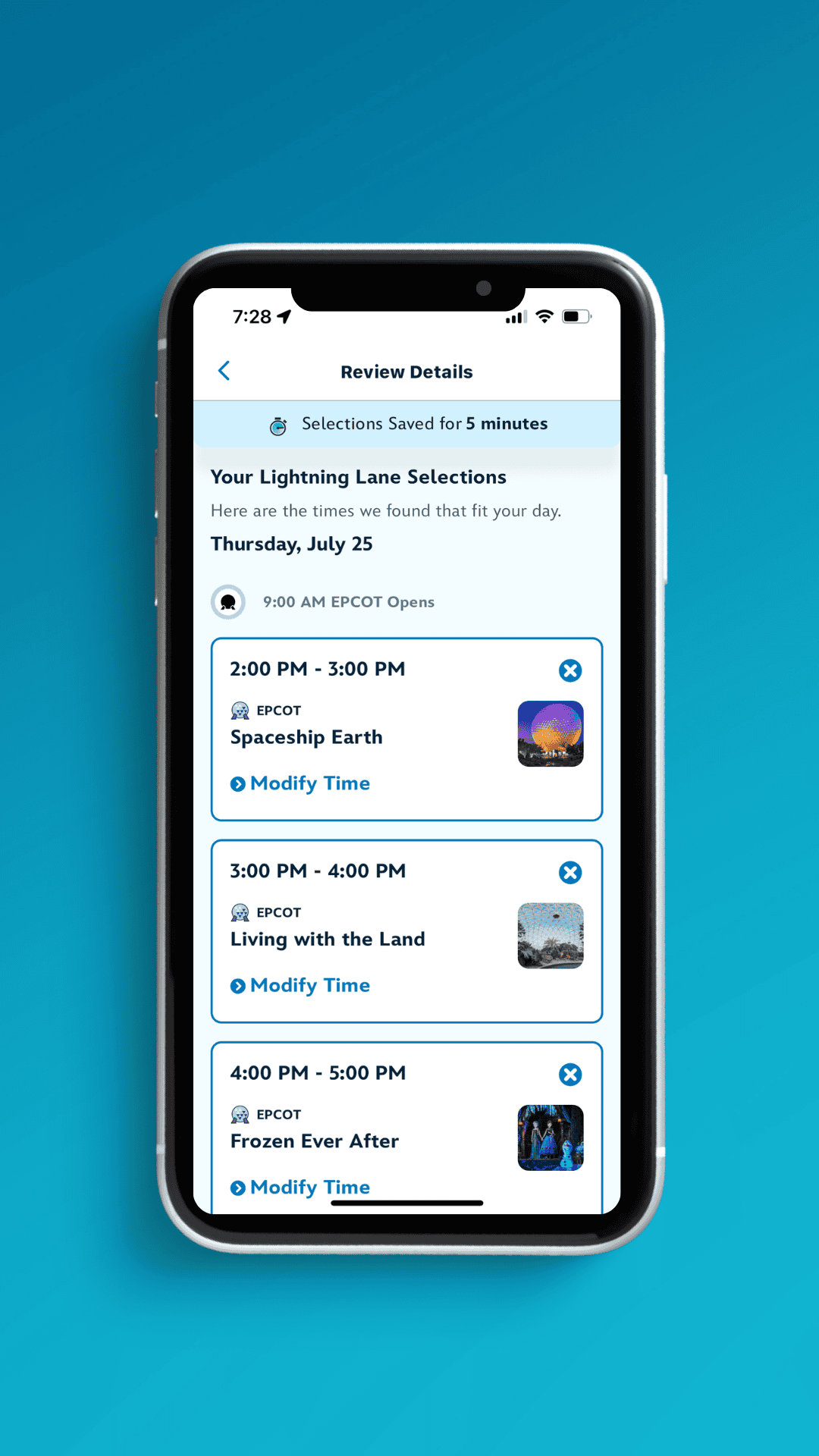
After confirming the three initial attractions, they will appear on a new screen with time ranges. You can then select “Modify” to adjust the times based on availability. While this is only an example below, it’s important to note that I selected these times at 7:30 a.m. on the day of my visit.
These screenshots were taken on the day the system debuted, so I didn’t have the opportunity to purchase Lightning Lanes in advance. But it’s a clear indicator that you need to be up at 7:00 a.m. EASTERN time when your window opens, with a clear plan of what to book and desired time ranges.
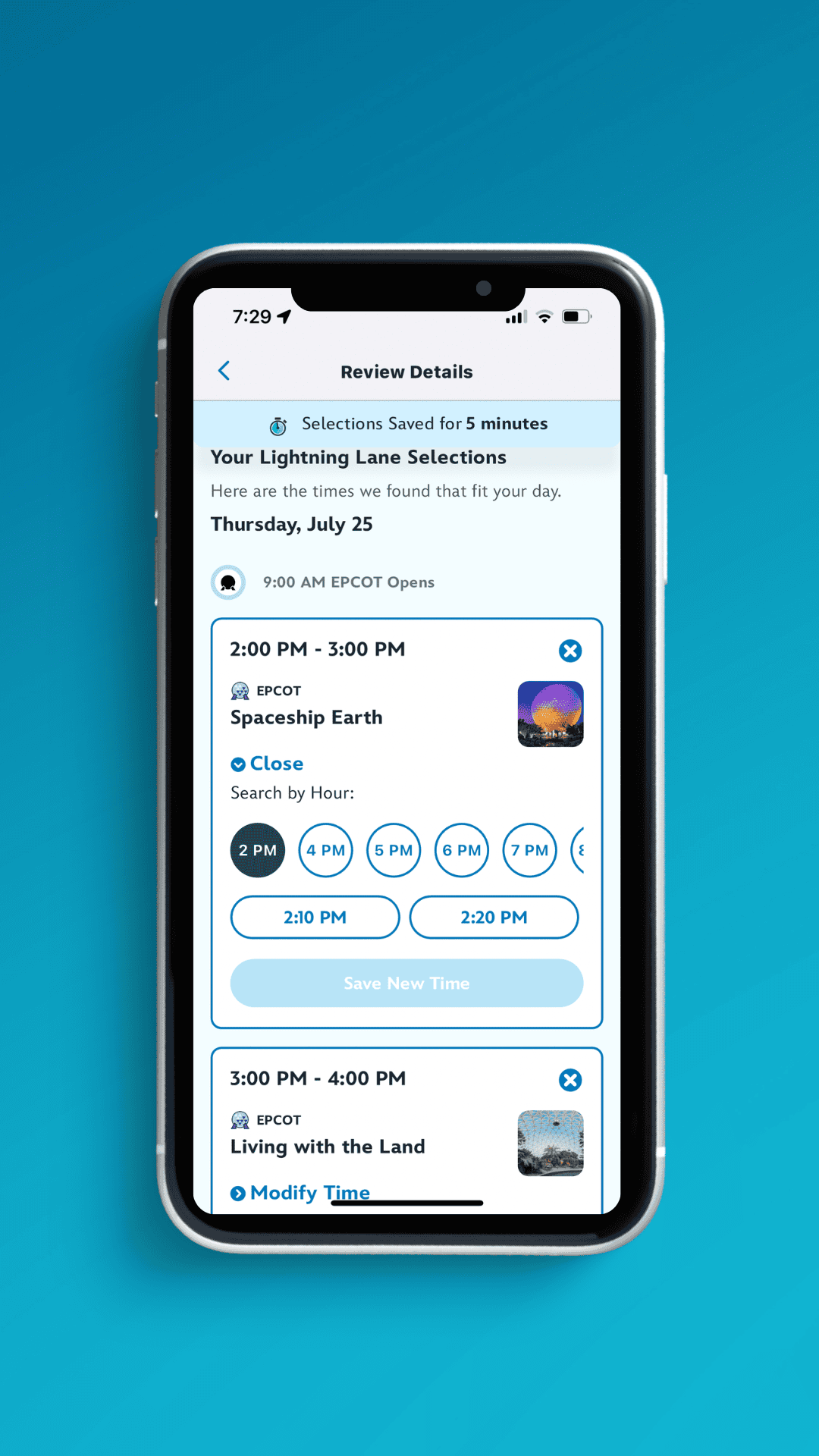
Step 9: Finalize your Purchase
After making your final selections, the total pricing is displayed at the bottom of the screen. You can press “Continue”, and the payment screen will appear. From there, you can enter your payment details and proceed.
Disney states on their website that Lightning Lanes are non-transferable and non-refundable.
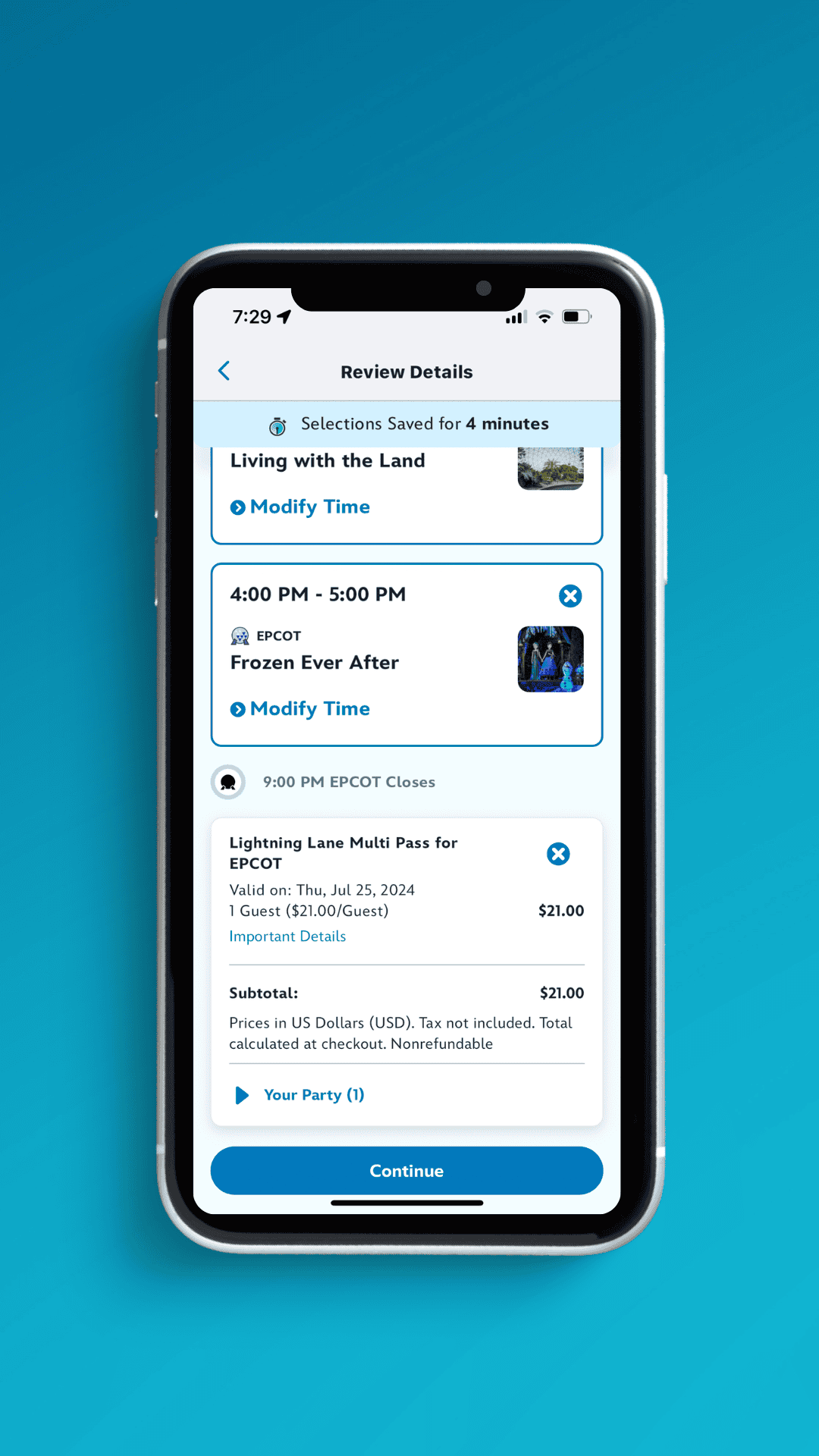
That’s it! You’ve selected and purchased your Lightning Lanes and can continue with another day the same way! To learn more about how Disney’s skip-the-line offering works, see our entire guide to Lightning Lanes at Disney World. It includes a list of attractions, average pricing, and other important planning tips.
Final Thoughts
We hope this tutorial helped simplify the Lightning Lane purchasing process. If you would like to learn more about using the app, we have a few similar guides with screenshot processes:
Worried about the total costs of Lightning Lanes and how they add up? See our Disney World budgeting spreadsheet to get an idea of big and small expenses you’ll want to include in your budget. If you’re new or need a refresher, you might enjoy our step-by-step Disney World planning guide. Check back with ResortsGal.com soon for more updates.
In the Comments
Did you find this walk-through of purchasing Lightning Lanes via the My Disney Experience app helpful? Let us know in the comments section below.