
How to Use the Car Locator in the My Disney Experience App
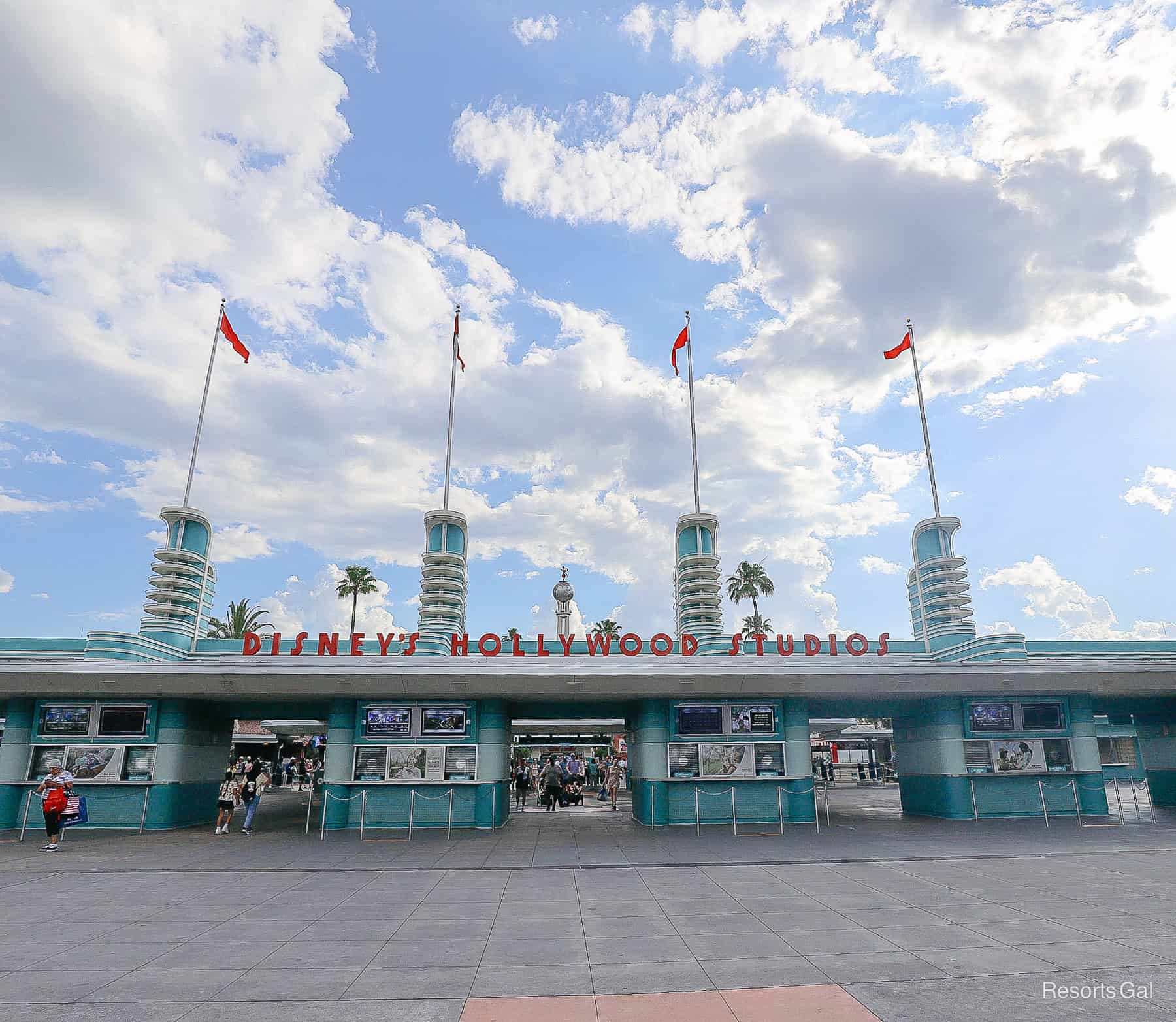
If you drive your car to one of the Walt Disney World theme parks, you’re going to need to remember where you parked. Thankfully, there are a couple of ways you can do that. One of which is the Car Locator service in the My Disney Experience app. While this tool has been around for some time, I have to admit that I hadn’t used it until recently. So on a visit to Disney’s Hollywood Studios, I decided to try it out.
Now don’t get me wrong. I visit the theme parks regularly, and developed a system for locating my car well before the car locator app was introduced. Long ago, I made it a habit of taking a photo of the row where I parked. Trust when I say that it would be difficult, even for someone like me, to find my car at the end of the day if I didn’t have a reference of where I parked. So no matter which method you use, make sure you take note of where you parked. Let’s take a look at the steps!
How to Use the Disney App to Locate Your Car
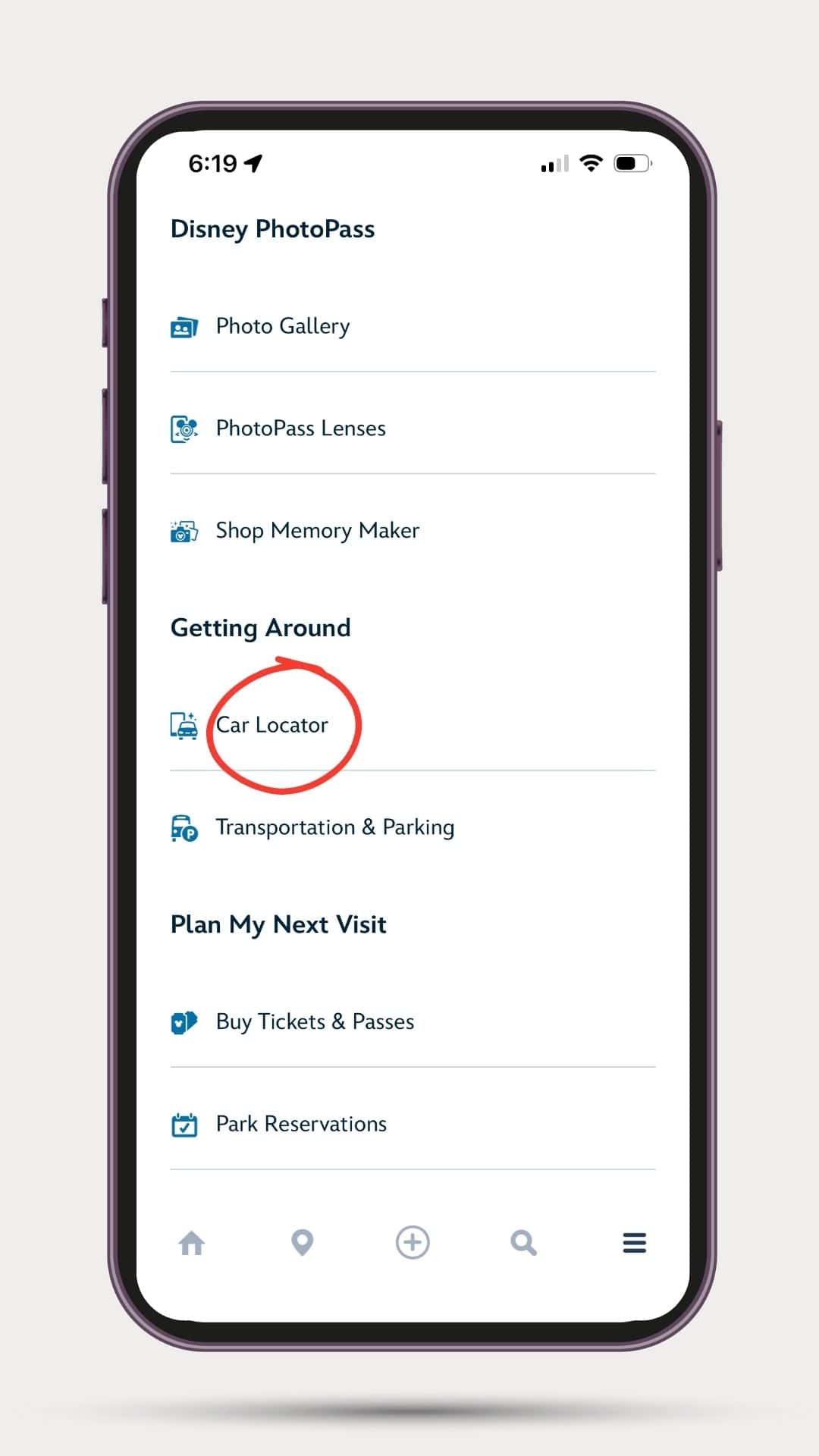
- Once you’re parked, you can open the My Disney Experience app and select the three stacked bars on the bottom right-hand corner (hamburger icon). From there, you’ll see “Car Locator” under the sub-heading Getting Around.
- You can then follow the prompts to save your vehicle’s location, or you can manually enter your parking information. (If location services are enabled on your device, the car locator can help you fill in the details.)
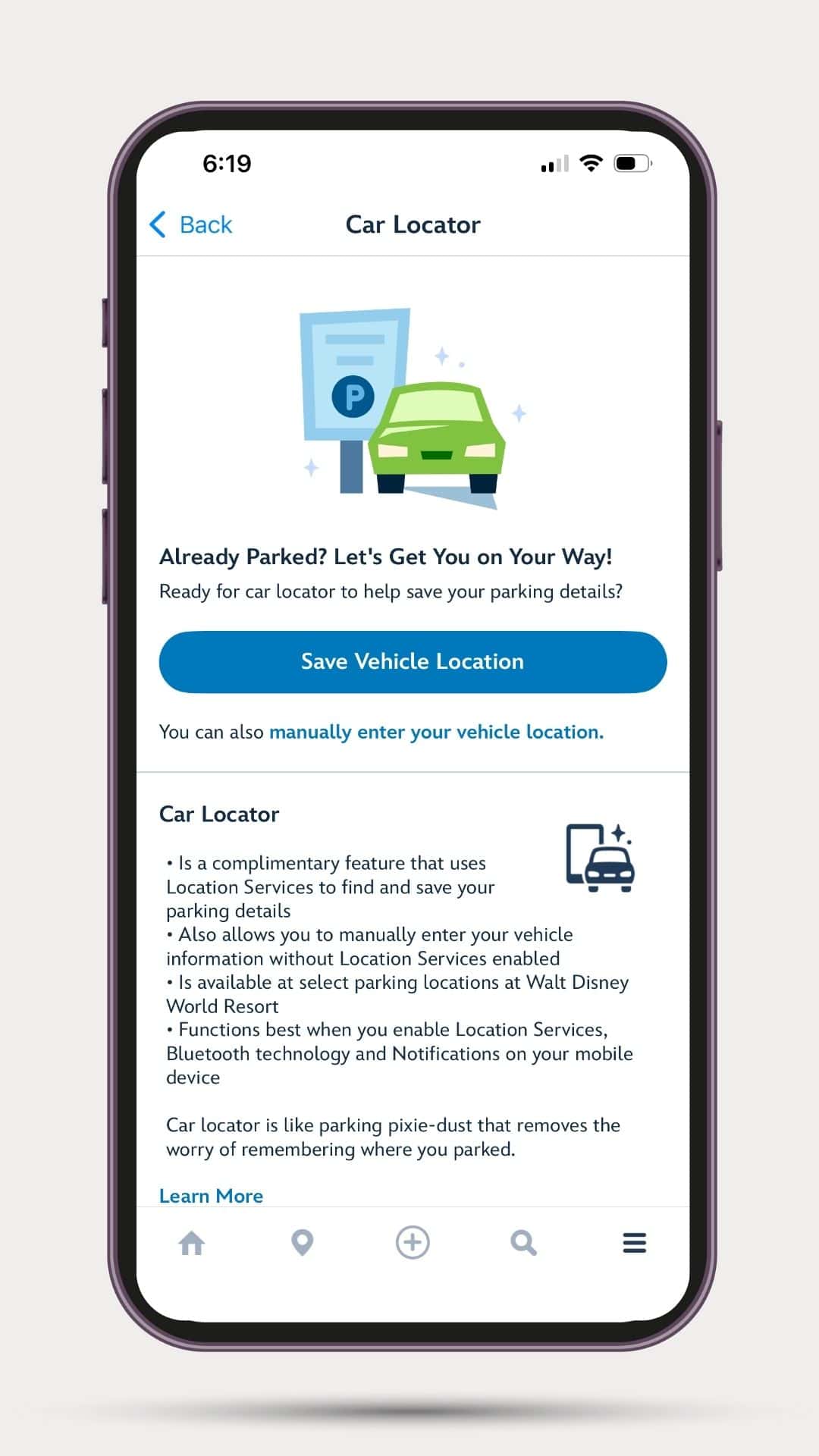
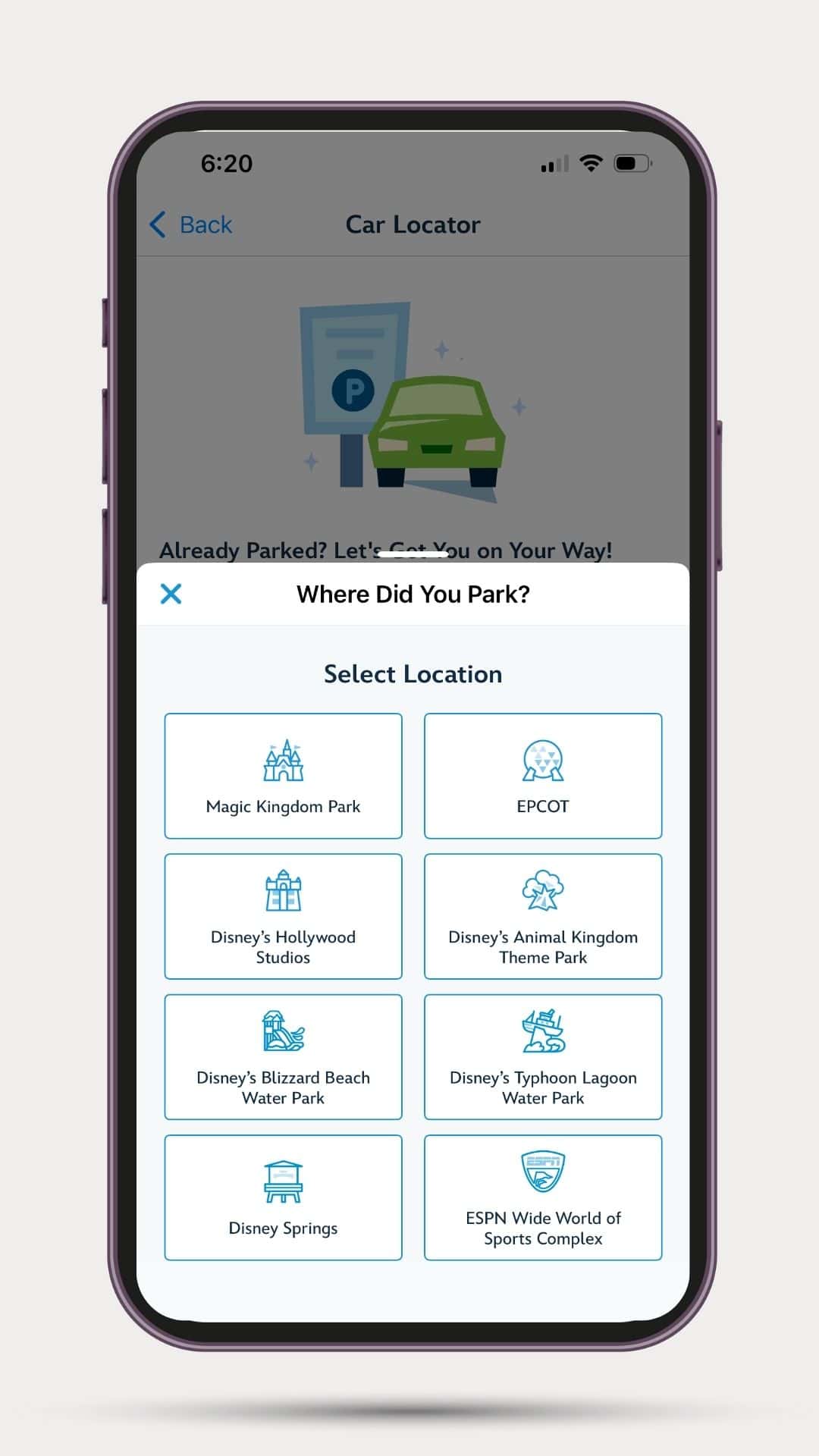
If you do not have location services enabled, you’ll be prompted to select the theme park in which you’re visiting. From there, you’ll need to select the area, which is usually represented by a Disney character.
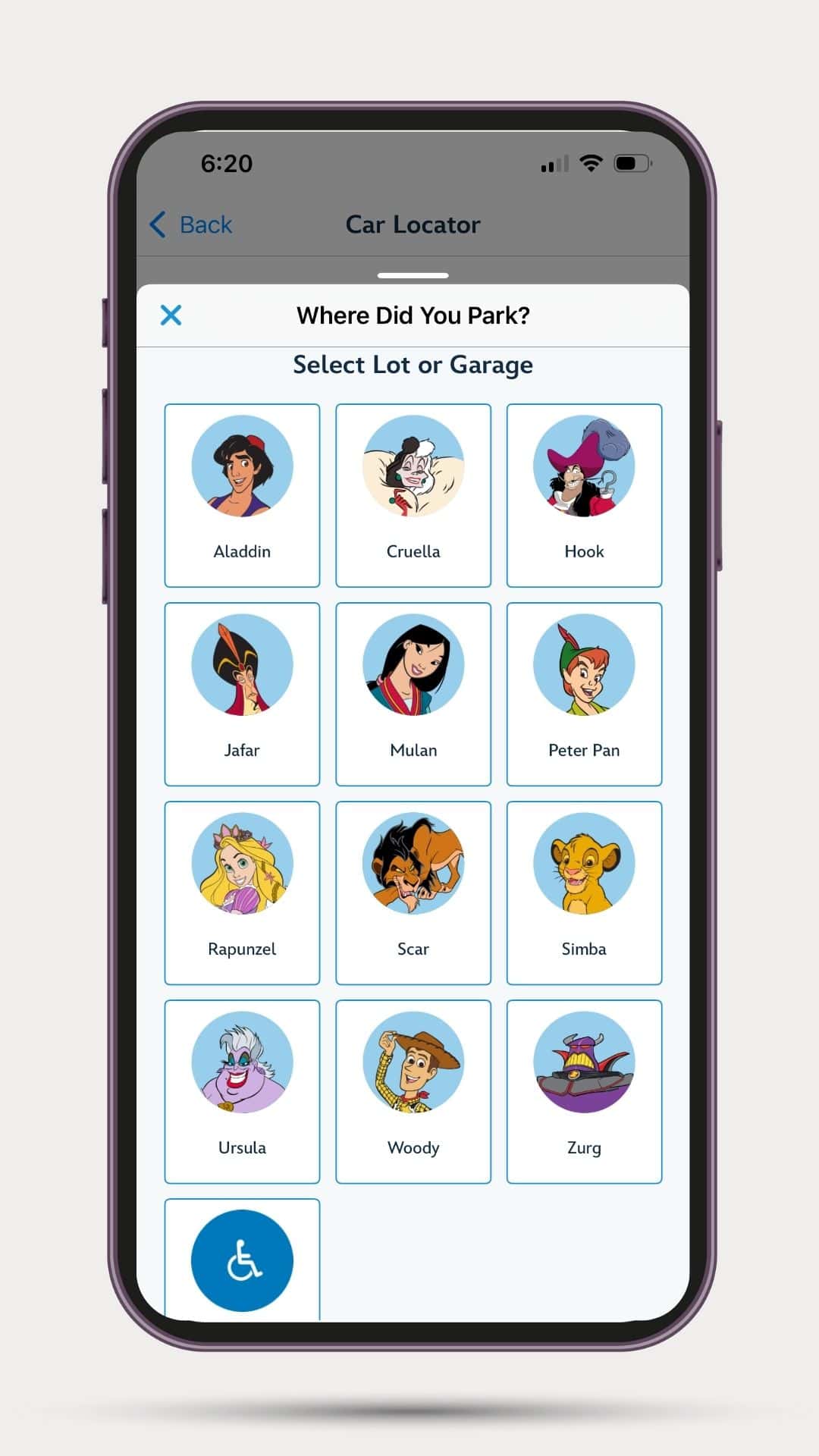
For this example, I was at Disney’s Hollywood Studios, and I parked in the Buzz Lightyear section of the parking lot. After selecting Buzz, I scrolled through and selected my row number.
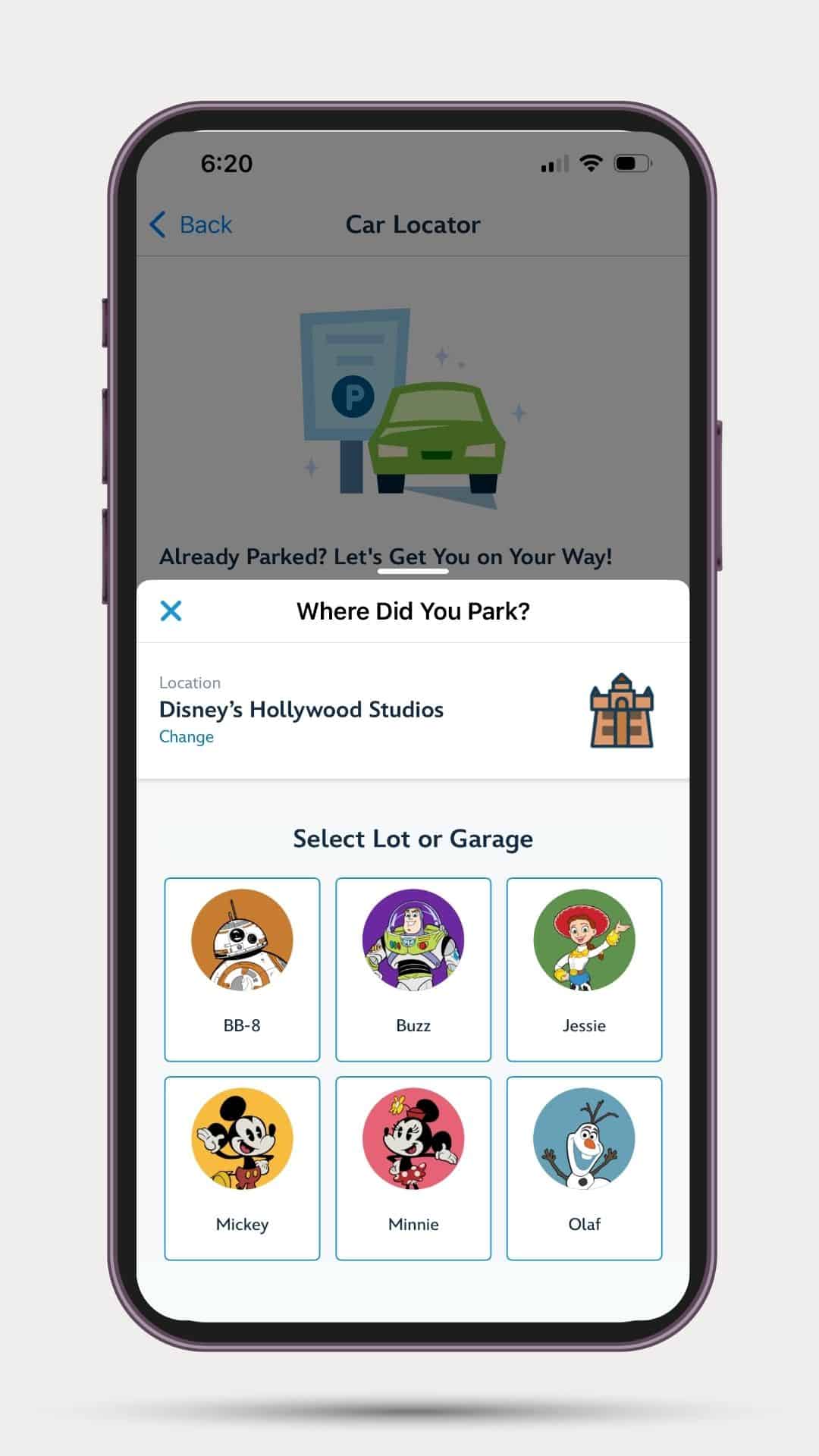
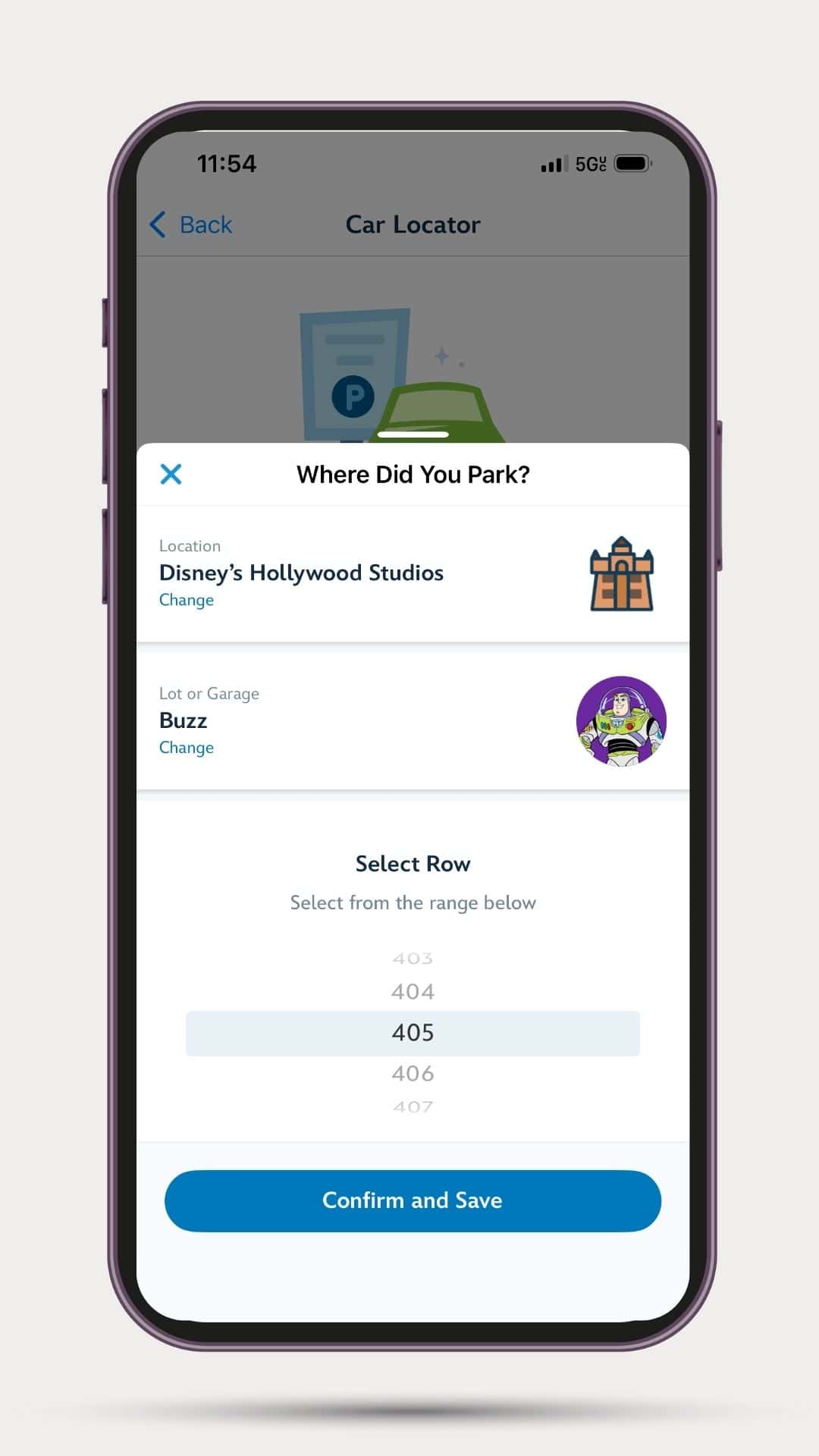
Once I had everything selected, I updated the details and my information was saved in the app. Later, when I was walking to my car, the app sent a notification to remind me of where I parked. (You must have notifications enabled for this feature to work, or you can manually view your location in the app.)
You might notice the second screenshot below shows where I took a photo of my row, which is what I typically do. Either way works great, but the app provides a little more information.
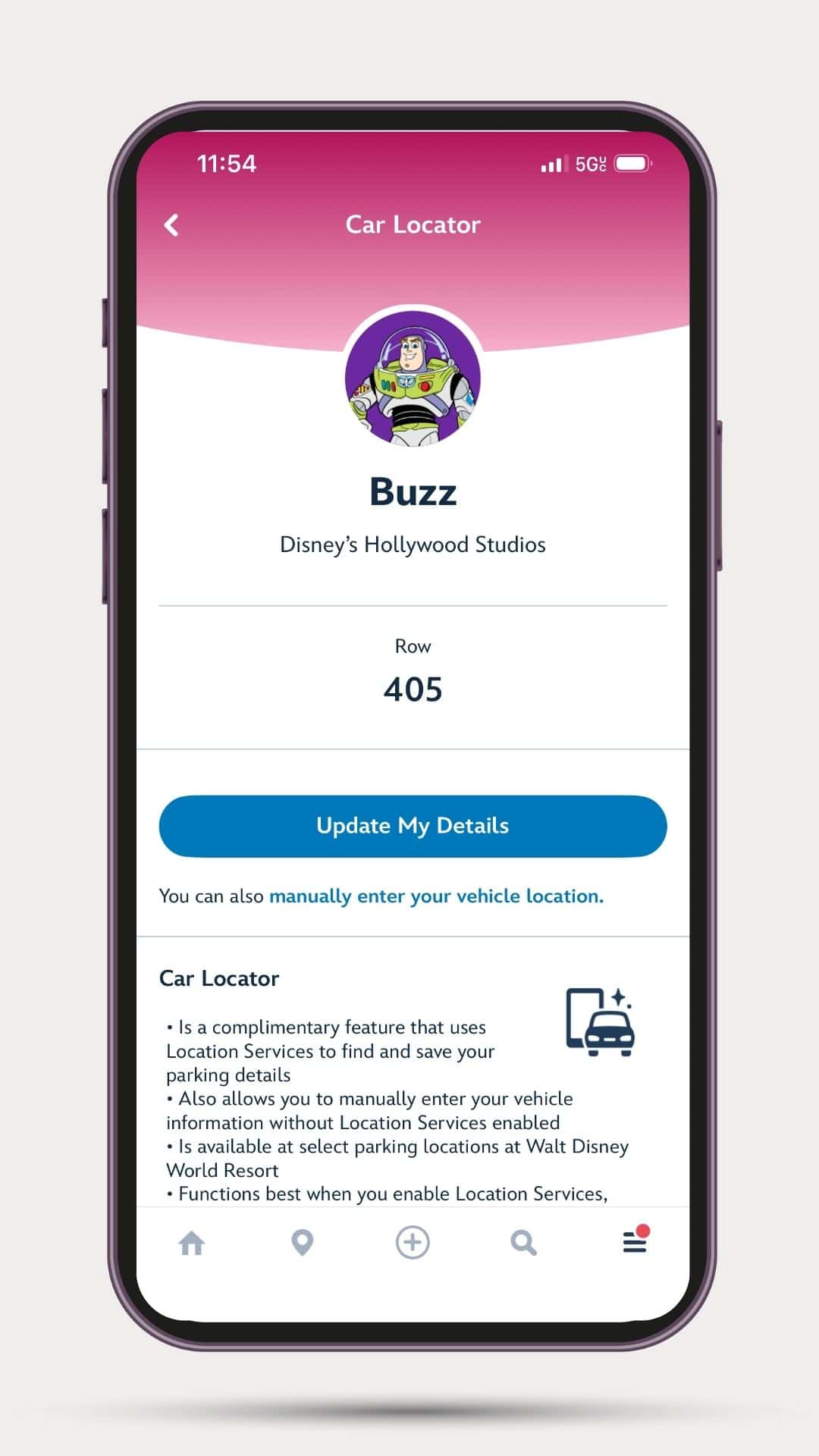
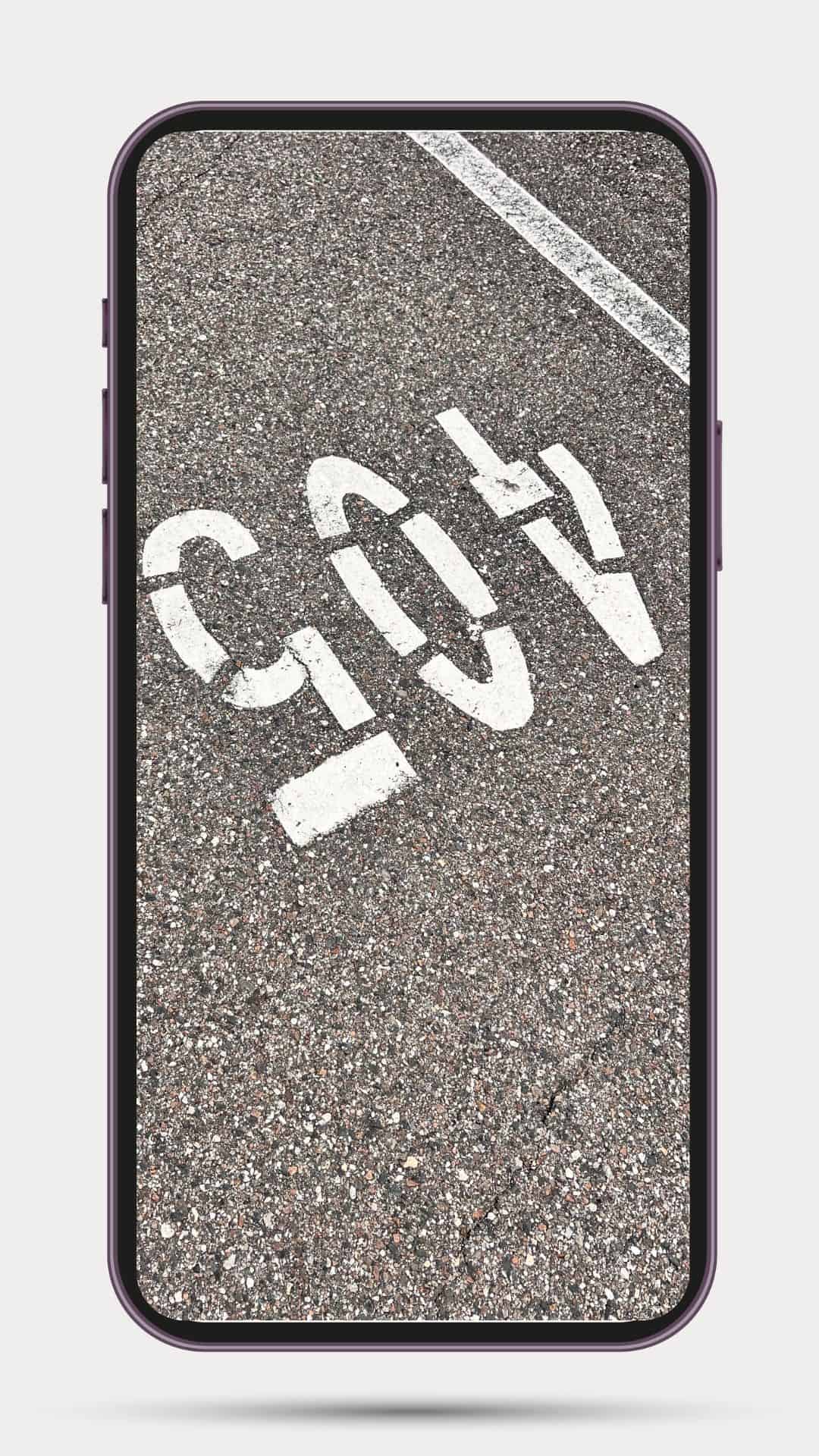
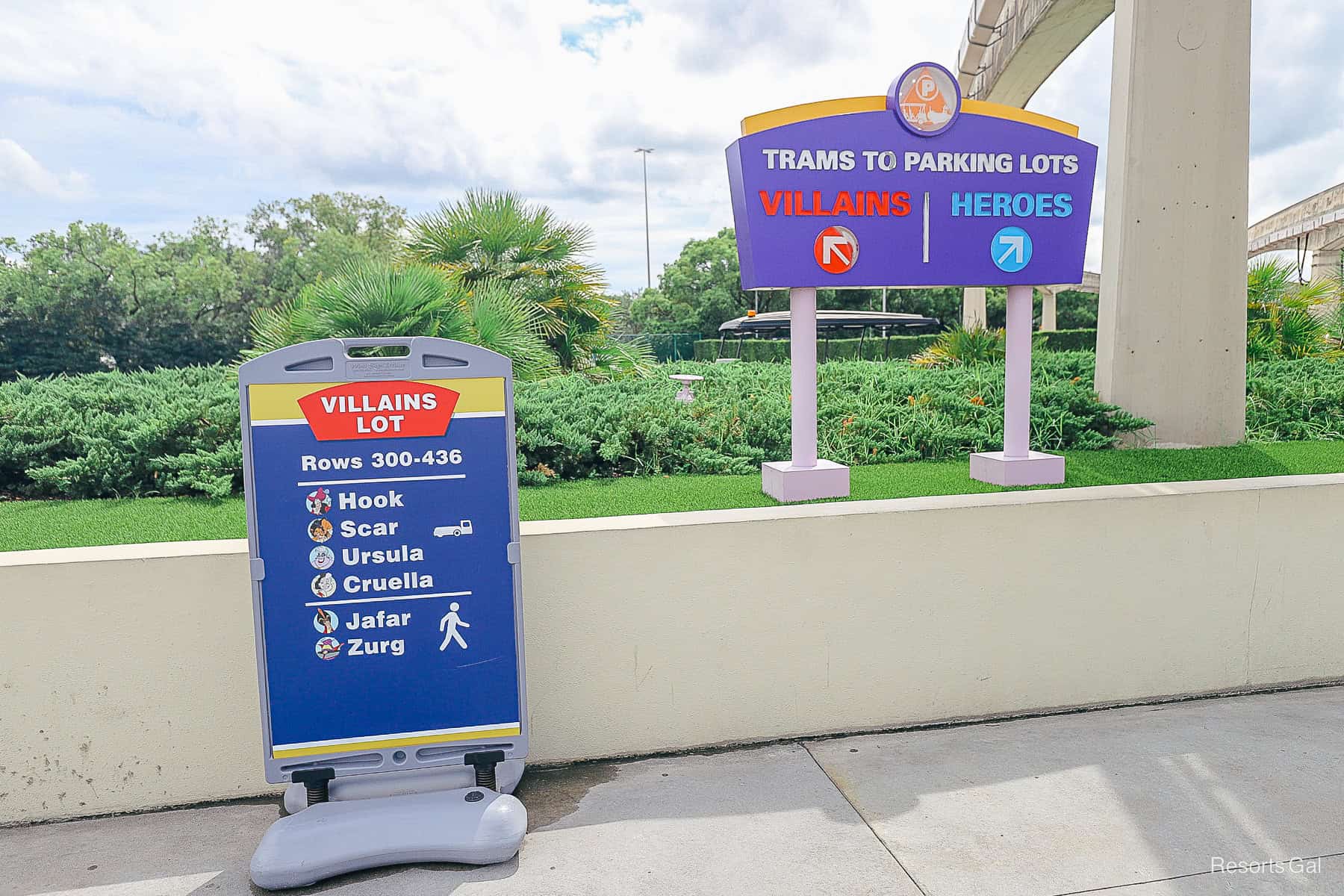
You may remember in our overview of the courtesy parking trams that I mentioned how I also like to make a mental note of whether I parked on the front or back of the row and how far down. For example, I might say I parked on the back of row 405 at about halfway down the row. That way, if I were walking down the front of 405, I would know to look for my car on the back row. I would also have a good idea of how far down the row I needed to walk.
That may sound like a lot of extra. However, if you get out of the car and head straight to the trams without paying attention, you won’t remember anything 10-12 hours later when you’re exhausted after a long day in the parks. So record the number using the Car Locator, take a picture of the row if you want, and take a moment to clarify where you parked. You’ll thank yourself later. Or you can be one of the 20 or so groups of people wandering the parking lot late at night, trying to set off their alarm to locate your car.
Pro-Tip: The tram driver will remind you where you parked when you depart the parking area. During the ride, they will also share valuable information about the park’s operating hours for the day, times for the nightly fireworks, and how long the trams will run on that specific day. Those who listen will likely benefit from the information provided.
Places You Can Use the Car Locator
The Car Locator is available at the following select parking locations:
- Magic Kingdom Park
- EPCOT
- Disney’s Hollywood Studios
- Disney’s Animal Kingdom theme park
- Disney’s Blizzard Beach water park
- Disney’s Typhoon Lagoon water park
- Disney Springs
- ESPN Wide World of Sports Complex
Final Thoughts
I hope this overview of how to use the car locator and other tips will save you some time on your next vacation. Looking for your car at the end of the night, well, it’s not a good look. We’ll leave it at that.
In case you missed it, we also shared an update on how to find bus times in the My Disney Experience app. It’s another useful tool for resort guests. For more on driving to the parks, see our overview of parking at Disney World. If you’re just getting started or need a refresh, see our Disney World transportation guide for beginners. Check back with ResortsGal.com for more updates.
In the Comments
Have you used the Car Locator in the My Disney Experience app? Let us know below in the comments.